 Use the Table of Contents
to navigate modern reports
Use the Table of Contents
to navigate modern reports
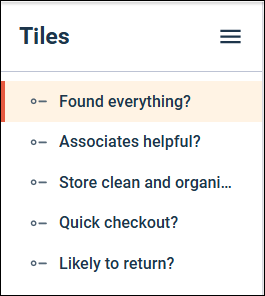
You can use the table of contents to view an overview of your report, quickly navigate to a specific tile, and reorganize the tiles.
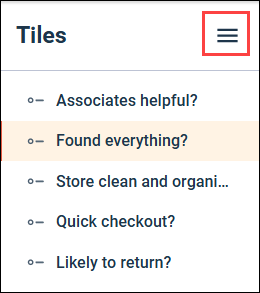
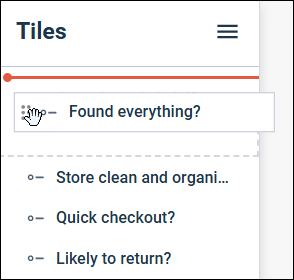
The table of contents is displayed on the left side of the report. It lists all of the data and text tiles in the report in the order they appear. The currently selected tile is highlighted. You can reorganize your report by dragging and dropping tiles in the table of contents.
Note: For grid questions, only the top-level of the tile is displayed in
the table of contents. You cannot navigate directly to the individual grid
question crosstabs. This functionality will be added in a future release.
-
To hide the table of contents, click
Collapse sidebar in the upper-right corner of
the panel.
-
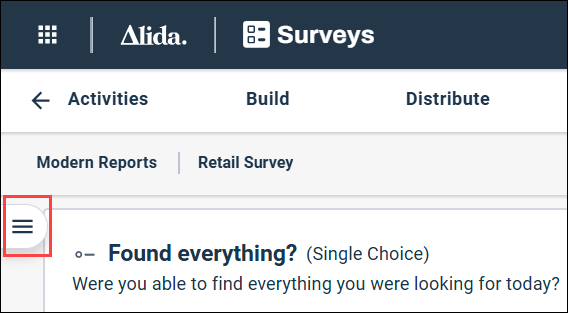
To show the table of contents after it has been hidden, click
Expand sidebar in the upper-left corner of the
report.
-
To move a tile in your report:
-
Hover over the entry you want to move to display the drag
handle.
A red line indicates where the tile will be inserted.
-
Hover over the entry you want to move to display the drag
handle.