Group responses with AI in
modern reports
Group responses with AI in
modern reports
You can use generative AI to automatically group similar responses.
As with any AI tool, Alida AI can make mistakes. Double-check the generated content to make sure it's accurate.
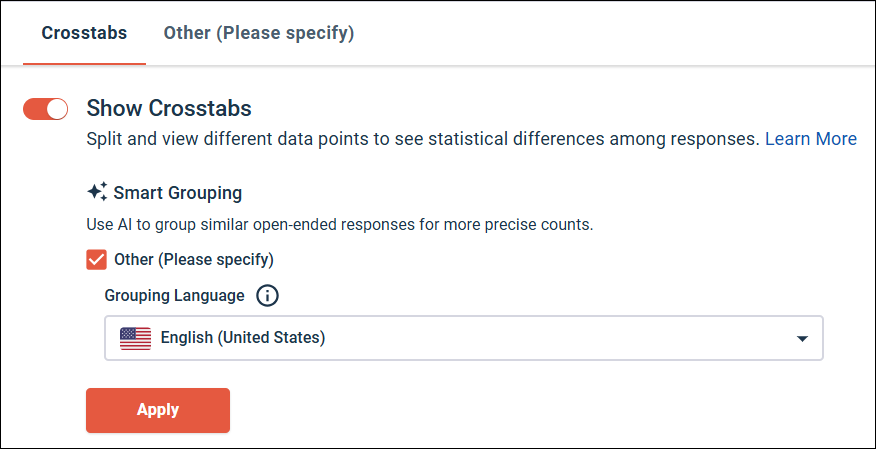
Instead of manually reading through and categorizing short open end or other/specify responses, use the Smart Grouping feature to automatically group similar responses. Smart Grouping uses generative AI to identify groups that exist in your data and associate the relevant responses with each group. This enables you to spend your time analyzing the report data and deriving insights rather than cleaning up and organizing the data.
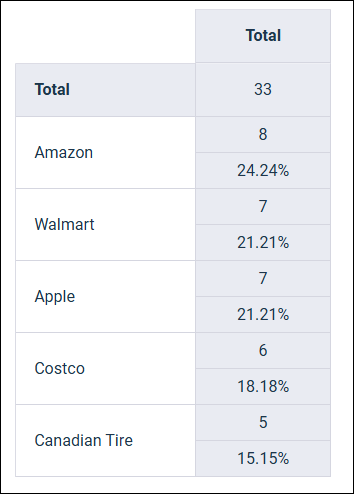
The results of Smart Grouping are displayed in a crosstab containing categorized groups with counts.
Smart Grouping automatically categorizes and groups similar open-ended text responses together based on their content and meaning by performing the following analysis:
- It takes individual text responses and clusters them into thematic groups.
- It creates groups where similar responses are categorized together.
- It groups similar responses regardless of language.
- It accounts for discrepancies in responses, such as misspellings and naming variations.
- It provides quantitative analysis by showing how many responses fall into each group.
| Smart Grouping other/specify answers to a Single Choice question | |||
|---|---|---|---|
Your survey includes a single choice question where participants can either choose from a predefined list of retailers or select the Other (Please specify) option and type in their answer. When you review the other/specify responses you can see that the same retailers are listed repeatedly, but that the data is messy. The participants have misspelled the retailer name, used slightly different names for the same retailer, and entered the retailer's name in various different languages. Manually sorting and counting the large number of other/specify answers is impractical. The other/specify option includes a large number of responses similar to the following:
You can get the information you need by using the Smart Grouping feature to automatically sort, group, and count the other/specify responses for each retailer. You can apply banners and filters to tiles that have Smart Grouping enabled. You can also enable Smart Grouping for multiple other/specify answers for a single question.
|