
Smart Grouping open-ended responses

Automatically group similar open-end text responses to understand the main topics and their frequency.

Prerequisites:

Open the modern report.

Note: Smart Grouping is not available by default in existing reports created before the feature release date (October 28, 2025). If you add new data tiles for supported question types or Text profile variables to an existing report, the Smart Grouping feature is available.

The following field types are supported:

Survey Questions Profile Variables
  • Short Answer
  • Long Answer
  • Email
  • Zip / Postal Code
  • Phone Number
  • Text
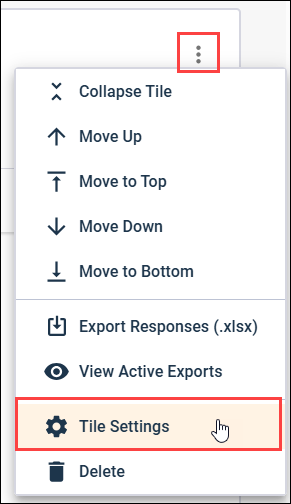
  1. In the upper-right corner of an open end or NPS℠ question tile, click the options menu and select Tile Settings.
  2. Click the Smart Grouping tab.
  3. Enable the Show Smart Grouping toggle.
  4. Optional: In the Grouping Language drop-down list, select the language to use to name the groups in the output.
    Smart Grouping can group answers that use a single language or multiple different languages. The identified groups are output in the single language you select.
  5. Click Apply.
    A new crosstab is displayed in the Smart Grouping tab listing the identified groups and the count and percentage values for each group.
  6. Optional: If you refresh your report and additional responses are included, click Regenerate Grouping to run the Smart Grouping process again and update the groups and count in the Smart Grouping crosstab.