Create a group with the AI Member Group Builder (beta)
Use the AI Member Group Builder to intuitively create a member group using an AI prompt.

How the AI Member Group Builder works
- To use this feature, you must opt in to AI and machine learning capabilities on our platform. For more information, see Enable AI and Machine Learning.
- This feature is available in English.
The AI Member Group Builder enables you to filter members and create new member groups using simple, natural language AI prompts. You describe the characteristics of the members you want to include in your research in the AI Prompt text box. The generative AI converts your prompt into a member filter, and then it applies the filter and displays the members who match your criteria on the Members page. At this point you can either fine-tune the filter or save the filter as a new member group.
| Example: Using an AI prompt to find a specific subset of members |
|---|
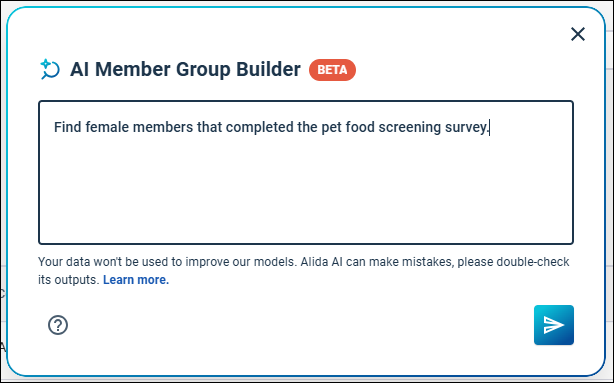
You enter a prompt in the AI Member Group Builder that describes the members you are looking for in simple terms. Alida AI uses your prompt to automatically define one or more filter criteria that match the request you described. In this case, you want to include female members who have completed the "Screening Survey - Pet Food Formula Video Discussion" activity. Additionally, you only want to include Active members, who are included by default so this criteria does not need to be specified in your prompt.
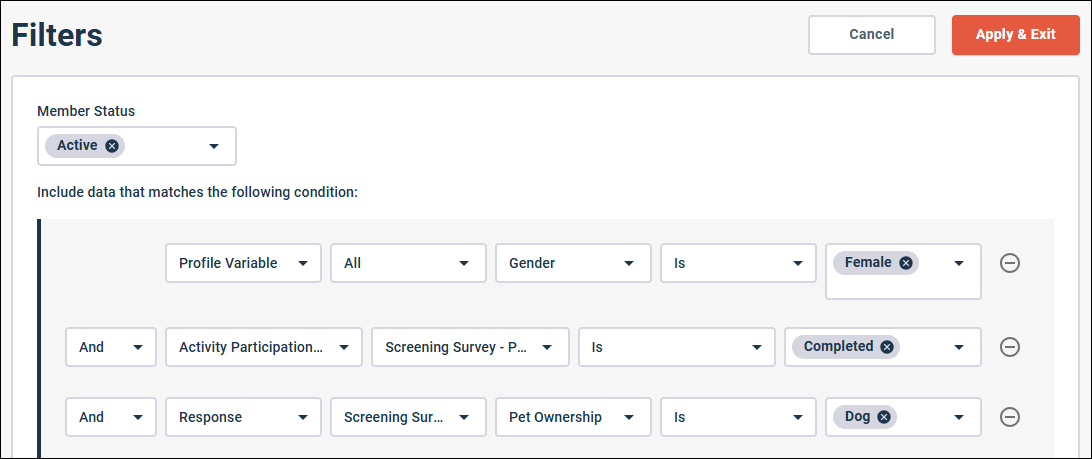
Alida AI is able to infer that it can use the Gender profile variable to identify Female members, and it also understands that "the pet food screening survey" matches "Screening Survey - Pet Food Formula Video Discussion" without requiring that you enter the exact name. Based on its interpretation of the prompt you entered, Alida AI displays the member filters it is using to select the members for your member group. You can review these filters to ensure that you are getting the expected results.
If you click Filters on the Members page you can edit the filters created by the AI Member Group Builder. For example, if you want to add an additional filter criteria for members who responded to a survey question indicating that they were dog owners, you can update the filter defined by Alida AI. Response filters are not currently supported by the AI Member Group Builder, so you cannot specify this type of response criteria as part of your AI prompt.
|

Keep the following conditions and limitations in mind as you work with the AI Member Group Builder:
- Your prompt must contain at least three words.
- Prompts return members whose Member Status is Active by default.
- The
AI Member Group Builder supports these
specific types of member filters:
- Member status: Filter members based on their current status in the Alida platform. For example, you can filter on members who have been purged from the platform.
- Profile variable: Filter members based on system or user defined profile variables. For example, if you have a Marital Status profile variables you could only include members who are single.
- Activity participant status: Filter members based on their activity participant status. For example, only include members if they have completed a particular activity.
- Member participation status
- The AI Member Group Builder cannot process the prompt if it encounters an unsupported type of member filter, or contains invalid logic (for example, "Completed the pet food screening survey tomorrow"). The AI Member Group Builder does not currently support Response member filter types, so you cannot use it to create filter criteria based on member responses to a specific survey questions. You can manually add Response criteria to the filter generated by the AI Member Group Builder.
Authoring effective prompts
You can filter members and define your member groups using natural language or specific variable names, such as the exact names of surveys or profile variables. Below are the patterns you can use to build your member filters with the AI Member Group Builder.
- Text and
location filters: Filter by city, status, emails, or specific text
fields.
Goal Example Prompts Exact text - "Members from Toronto"
Partial match - "Email contains alida.com"
Multiple options - "Members from Vancouver, Calgary, or Toronto"
Required items - "The pet food screening survey is completed"
- Numeric and
age filters: Filter by ages, calculated date values, and years.
Goal Example Prompts Exact match - "Exactly 30 years old"
- "CalculatedAge = 3"
- "CalculatedAge equals 25"
Minimums - "At least 18 years old"
- "55 or older"
- "CalculatedAge >= 21"
Maximums - "35 or younger"
- "Under 65 years old"
- "CalculatedAge <= 30"
Ranges - "Between 18 and 35"
- "Aged 25 to 45"
In the examples above CalculatedAge is the name of a Calculated Date profile variable.
- Combining
multiple filters: Create member groups by combining multiple
criteria or excluding specific sub-groups.
Goal Example Prompts Combining criteria (AND) - "Active members in Vancouver who are divorced"
- "Members who live in Vancouver and are divorced"
Alternative criteria (OR) - "People aged 30 or 35 "
- "CalculatedAge = 30 or 35"
Excluding criteria (NOT) - "Married members who are 50+ ...excluding anyone from Toronto"
- "Married members who are 50+ and are not from Toronto"
Complex combinations - "Married, age >= 50, not living in Toronto"
- "Members who are married, at least 50 years old, and do not live in Toronto"
Filter members and create a member group
Use the AI Member Group Builder to filter out the members of your community you are interested in and optionally save the filter criteria as a new member group.
-
Click the
App Drawer and select
Members.

-
Click
AI Member Group Builder.

-
Enter the prompt for the member group and click
Start building.
 Result:
The AI Member Group Builder generates a filter based on your prompt, applies it to your member data, and displays matching members.
If you need to stop the generation process at any point, click Stop building.
