Open-ended response analysis in modern reports
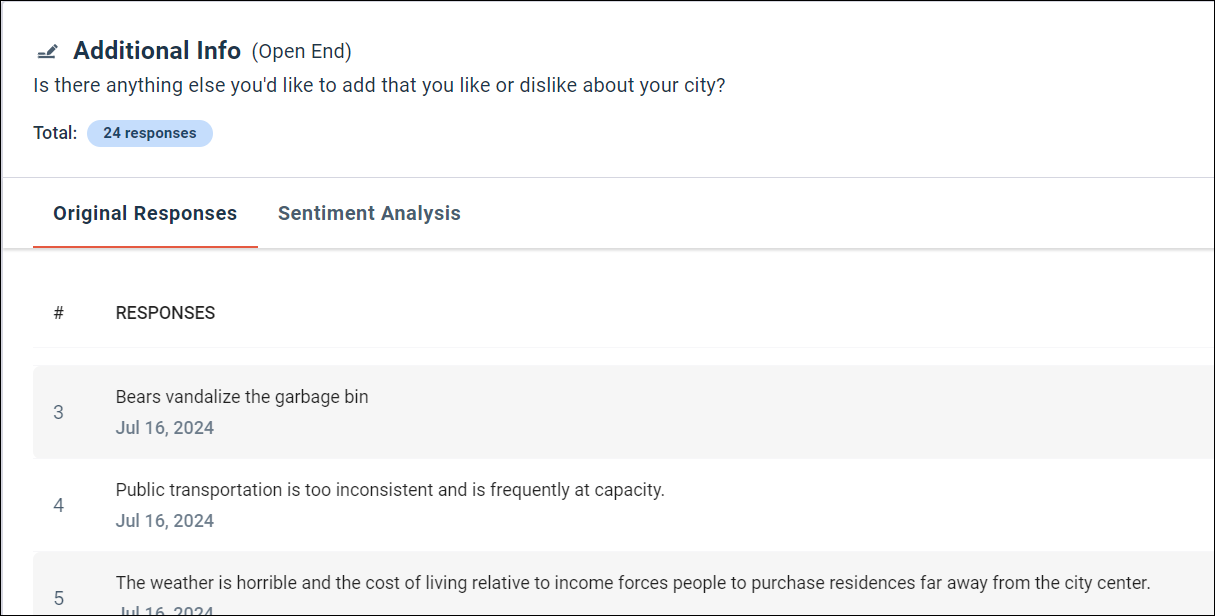
For open-ended questions, the report defaults to listing the text responses directly.
- Short Answer
- Long Answer
- Zip / Postal Code
- Phone Number
Tiles for Open End questions display the individual text responses collected by the survey, allowing you to read through each of the responses to the question.
You can browse through multiple pages of responses, if applicable, by clicking the page numbers at the bottom right of the Original Response table. You can also adjust the number of entries displayed on each page by selecting 10 (Default), 25, or 50 items from the Show ... per page drop-down list.
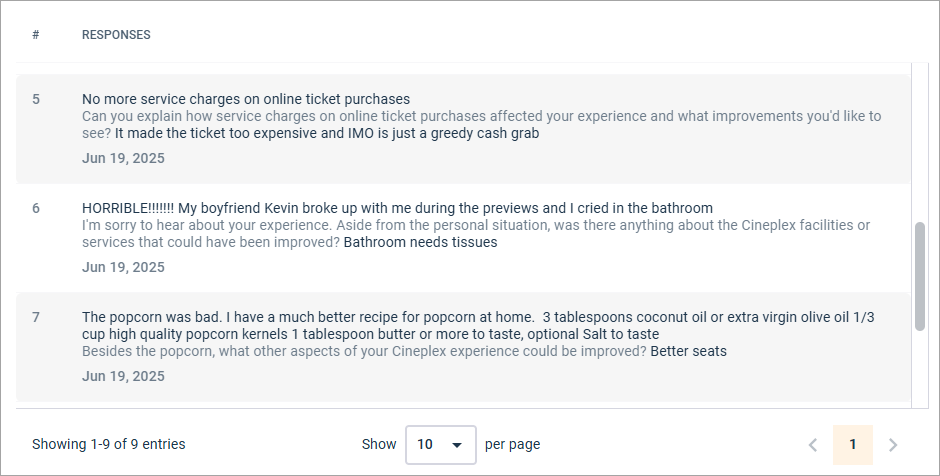
AI Follow-Up
In modern reporting, the participants' responses appear next to the AI Follow-Up questions. The questions are displayed in-line in light grey text, while the responses are displayed in dark text.
For more information, see AI Follow-Up (beta).
AI Summary
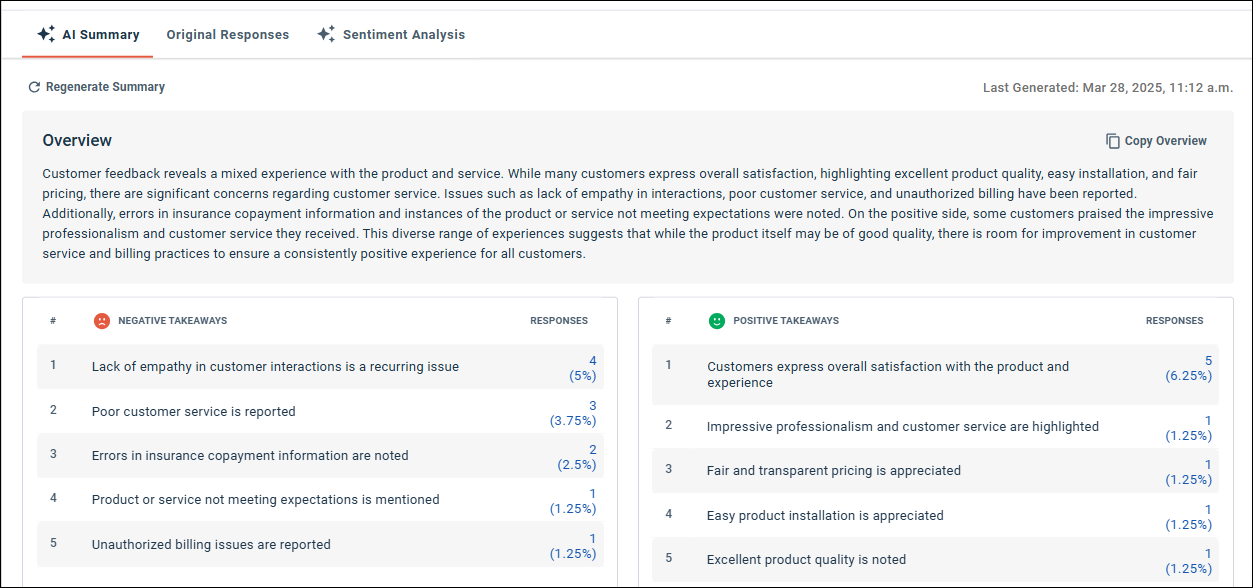
When the AI Summary tab is enabled for a tile, it displays panels with the following information:
- Overview: A summary of the key findings identified by Alida AI.
- Negative takeaways: The key points and themes identified as negative feedback from participant responses.
- Positive takeaways: The key points and themes identified as positive feedback from participant responses.
For more information on generating AI summaries and working with them, see Enable AI summaries in modern reports and Working with AI Summary results in modern reports.
Sentiment Analysis
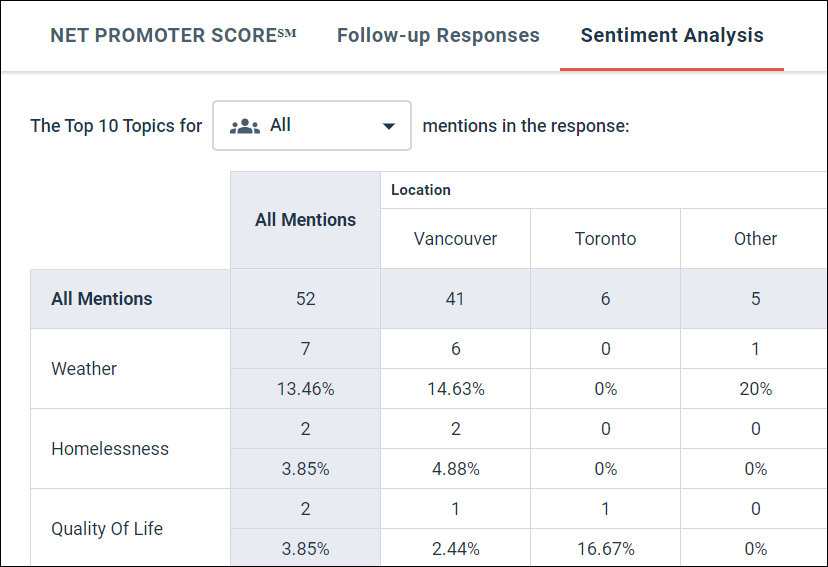
When the Sentiment Analysis tab is enabled for a question, it displays a standard crosstab with the topics identified in the responses and the number of mentions and the percentage of mentions for each topic, along with the total number of mentions. If banners are included, a column is added to the crosstab for each answer, or profile variable value, with the counts and percentages for the column.
Filter mentions by sentiment
Initially, all sentiment values are included in the results. You can use the drop-down list at the top of the tile to narrow down the results to include only Negative, Neutral, or Positive mentions.
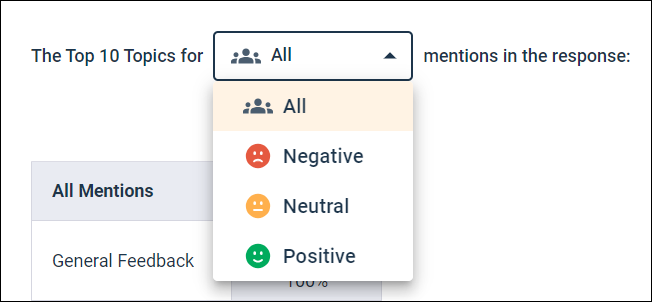
For more information on sentiment analysis in modern reporting, see Sentiment analysis in modern reports.
The following Survey question types are supported:
- Short Answer
- Long Answer
- Net Promoter Score℠ (for follow-up question answers)
- Zip / Postal Code
- Phone Number
Profile variables assigned the Text type are supported.
Drill down for individual analysis results and response text
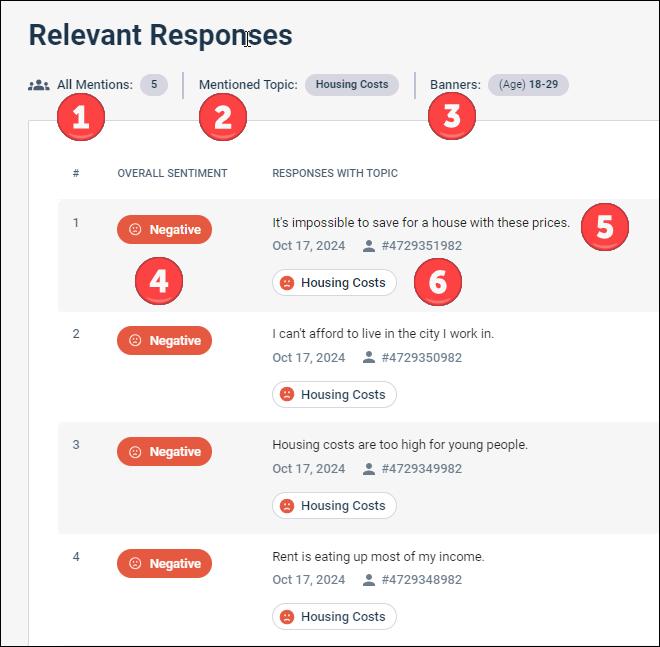
- Sentiment of mentions: Lists the count of mentions displayed and the sentiment(s) being displayed (All, Negative, Neutral, Positive) based on the sentiment filter applied to the Sentiment Analysis crosstab.
- Mentioned topic: Lists the topic you are drilling down into, or All if you selected the link in the All Mentions column heading.
- Banners: Lists the banner you are drilling down into by selecting any of the rows in a banner column, or All if you select any row in the All Mentions column.
- Overall sentiment: The overall result of the sentiment analysis for the response: Negative, Positive, or Neutral.
- Response: The original text of the response, or the translation of the response text if Translate Responses is selected.
- Mentions: The list of one or more topic mentions associated with the response, and an icon with the sentiment identified for each mention.